

In this article, we’ll see the first things to learn getting started with MATLAB:
- How to make MATLAB more personal
- What the different windows are for
- How to define a variable
- How to create and run a script
- The miscellaneous commands that are useful when you start
Making MATLAB More Personal
The first thing I like to do when I start learning a new programming environment is to change the layout to make it more personal. In MATLAB, you can do that easily by choosing among the predefined layouts:
- Go to the HOME tab
- “Layout” > “SELECT LAYOUT”

Then, you can choose a predefined layout:


- Modifying a layout: you can modify a predefined layout by left-clicking on a window and maintaining and sliding the window to your desired location.
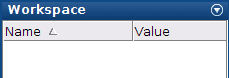
- Dock/undock a window: if you need to undock a specific window, you can do that by clicking on the button on the upper right of every window:
- Saving a modified layout: you can also save a layout by clicking on the “LAYOUT” dropdown menu and “Save Layout…”
Once your layout is saved, you can find it in the “LAYOUT” dropdown menu.

The Current Folder in MATLAB
- Definition:
The current folder is the folder that MATLAB has access to—meaning that if you define a script of a function in a.m file and you save the file in that location, then you will be able to use it. - Changing your current folder:
You can change folders by clicking on the “up one level” button: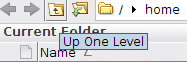
- Adding a file to your current folder:
If you want to add a file to your current folder, you can move your mouse to the current folder window and complete the following steps:
Right click > “New File” > “Script”
This will create a script in your current folder. We’ll see the different ways of creating a script later on in this article.

Changing Your Startup Folder
If you want to modify the current folder when MATLAB starts so that you don’t have to move your current folder every time you open it, do the following:
- In the “HOME” tab, click on “Preferences”
- Click on “General”:
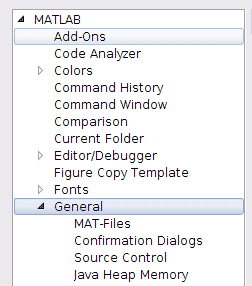
- In “Initial working folder” you can toggle the third option, which is “Specify the full path to a folder”:
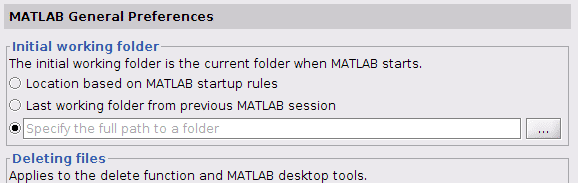
You can then specify your initial working folder.


MATLAB: Define a Variable
How to Define a Variable in MATLAB
- Default variable:
First, let’s see the default variable in MATLAB. To do that, type 4 in your Command Window: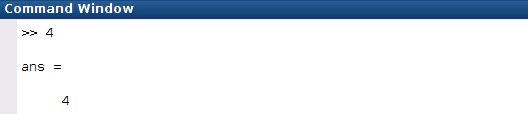
- Specific variable:
Now, let’s define a variable by specifying its name:

x = 4; % the definition of x will not be displayed
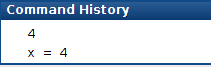
Notice that all the commands that you’ve typed in the Command Window can be found in the Command History:


MATLAB: Whos
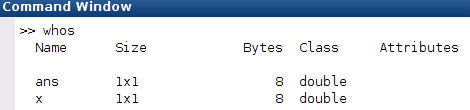
You have now defined 2 variables, “ans” and “x.” In order to see them in your Command Window, you can use the MATLAB command whos:

MATLAB Script
How to Create a Script in MATLAB
There are 3 main ways to create a script in MATLAB:
- Click on “New Script” in the Home tab
- Right-click in the current folder > “New File” > “Script”
- Select lines of code in the “Command History” (by holding the CTRL key and left-clicking on the commands from your Command History) > right-click > “Create Script”
Run a MATLAB Script
There are 3 main ways to run a MATLAB script:
- Use a keyboard shortcut: F5
This is by far the most efficient way in my opinion. - Run a MATLAB script from a command line: write its name
Write the name of your script in the Command Window to run it. (Make sure that the file is in your current folder or that the folder in which the file is located has been added to your search path, see MATLAB & Simulink: Why It Doesn’t Find Your Function or Variable) - Use the “Run” button:


MATLAB: Clearing the Workspace and Other Useful Commands
The Fundamentals
- To clear the Workspace, use:
clear all; % delete variables in the Workspace
- To clear the command window, use:
clc; % clean up the variables in the Command Window
Useful to Know When You Start
- The up arrow key: use the up arrow key in your Command Window to find a command you used in the past. Every time you use the up arrow key you will go further back in the Command History.
- doc commandName: if you want information about a specific MATLAB command use:
doc commandName % provide everything you want to know about commandName
- demo: use the demo MATLAB command to find tutorial and videos about different topics:
demo % provide Mathworks tutorials
Key takeaways:
- Personalizing MATLAB:
- changing your layout: “HOME” > “Layout”
- saving current layout: “HOME” > “Layout” > “Save Layout”
- dock/undock a window: window’s top right icon > “dock”/”undock”
- MATLAB Windows:
- current folder: folder that MATLAB has access to
- changing the startup folder: “HOME” > “Preferences” > “General”
- Useful commands:
clc % clean up the command window
clear all % get the previous command
- MATLAB Script:
3 Ways to Create a Script:- “HOME” > “New Script”
- Right-click in current folder > “New File” > “Script”
- Command History > select lines > right click > “Create Script”
3 Ways to Run a Script:
- Use the keyboard shortcut “F5”
- MATLAB Editor > click on “Run”
- Write the name of the script in the command window:
>> myScript
If you want to save time learning MATLAB, this article might also interest you: