

In this article, you’ll learn how to use the dir MATLAB command to manipulate files, folders, and subfolders. Specifically, you’ll learn to:
- Read all files in a folder in MATLAB
- Use dir instead of ls
- Use the dir MATLAB command
- List all files in a folder and its subfolders
Read All Files in a Folder
Differences Between Dir and Ls Command
There are a few ways to read all files in a folder in MATLAB: using the ls MATLAB command or using the dir MATLAB command. So what are the differences between those two?
I was used to relying on ls instead of dir to automate my work because I use a Linux distribution at home, and because ls is also a bash command (which is the command language for most Linux distribution).
When I learned that the ls command also existed in MATLAB, I just didn’t put that much thought into it.
However, this isn’t a very practical command when your goal is to get a list of the folders and files in your current folder. Instead, ls will create a matrix of the file names of your current folder as a matrix of strings. To make that possible, MATLAB concatenates the names of the files and folders.
- The ls MATLAB command: let’s say we have the folder named “folder I like” and the folder named “folder.” Then, the matrix created by the ls command will be:
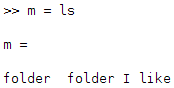
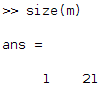
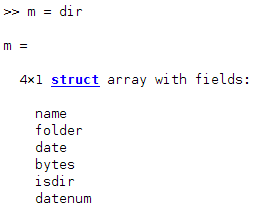
So, if you actually want to use those file names, you’ll have to separate them. - The dir MATLAB command: of course, an easier way to concatenate string values so that you can retrieve them easily is to use either structures or cell arrays. This is actually what the dir command is used for: it defines each folder as a structure and adds them to an array (a struct array):


Example of Using the Dir MATLAB Command
Let’s say we have a folder containing 2 .m files, 2 text files, and a subfolder:
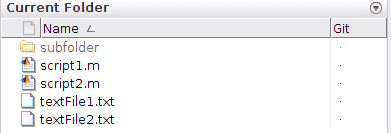

In addition to these 5 files and folders, MATLAB always considers:
- the current folder: “.”
- the “up a level” folder: “..”
That’s why if you use the dir MATLAB command as the following, you will have seven folders and files in total:
filesAndFolders = dir; % read files and folders in the current folder
Then, you can access the name of all these files and folders using the “name” field of that struct array:
filesAndFolders.name % display all files and folders in the current folder
To learn more about MATLAB structures, see MATLAB Data Structures: Basic Syntax, Accessing Elements and Structure Array.
If you want to find all files with a certain extension, you can specify this extension as the following:
filesAndFolders = dir('*.txt'); % contains only text files
More generally, you can specify the extension in a variable used in the dir MATLAB command:
extension = '.m';
filesAndFolders = dir(['*.' extension]); % contains only.m files
If you want to list every folder only or every file only, you can use the “isdir” field of the struct array that you defined, namely the “filesAndFolders” variable. For every variable, the “isdir” field contains the Boolean value 0 for a file and 1 for a folder.
For example, here’s how to list every file in our folder example:
filesAndFolders = dir;
for i = 1:numel(filesAndFolders)
        if ~filesAndFolders(i).isdir
                disp(filesAndFolders(i).name) % disp displays the value of the input variable
        end
end
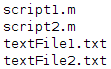
which displays the following in your workspace:

List All Files in a Folder and Its Subfolders
Let’s add a file in “subfolder”:
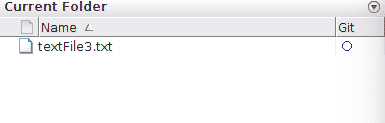


You can access the subfolder files using the following:
filesAndFolders = dir([pwd '/**']);
For example, to list all files in the current folder and subfolder, apply the following:
filesAndFolders = dir([pwd '/**']);
for i = 1:numel(filesAndFolders)
        if ~filesAndFolders(i).isdir
                disp(filesAndFolders(i).name)
        end
end
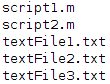
The result in MATLAB is:

Key Takeaways:
- List all files in a folder using:
FilesAndFolders = dir; % read files and folders in the current folder
- List all files with a specific extension using:
filesAndFolders = dir(['*' extension]); % extension could be '.txt', 'txt', '.slx', ...
- List all files in the current folder and subfolders using:
filesAndFolders = dir([pwd '/**']);